How to Test a Laptop Charger with a Multimeter
As an Amazon Associate we earn from qualifying purchases.
How to test a laptop charger with a multimeter comes down to four checks: set the meter to DC volts, measure the voltage at the barrel tip, compare the reading with the Output line on the charger’s label, and confirm the tip polarity and the output cable’s continuity. This guide covers only the low-voltage DC output side, the cord and tip that feed the laptop. It does not describe the input side or any mains work.
Quick answer
- Set the meter to DC volts and pick a range above the rated output.
- Put the red probe on the center tip and the black probe on the outer sleeve for a center-positive charger.
- Compare the reading with the Output line on the label. The sources we opened disagree on how close is close enough.
- Test the output cable for continuity only with the charger disconnected.
Electrical safety comes first
Work on mains circuits can kill. Before you measure anything, check that the meter’s CAT rating suits the circuit you are testing, and read the rating from the listing or the manufacturer’s manual. Panel and service work belongs to a licensed electrician.
Fluke’s safety guide says that “Working with electricity always carries a risk.” The same guide says that CAT-rated meters are designed to minimize or reduce the possibility of an arc flash occurring inside the meter. Fluke also gives a worked example of a 480 V feeder panel that needs a meter rated at least CAT III-600 V. That example concerns panels, which this guide does not cover. We cite it only to show that the rating must match the place where you measure.
Two limits apply here. First, the sources we opened do not give a CAT rating for any laptop charger, and they do not give one for any specific meter. Read the rating from the meter’s listing or manual. Second, the sources we opened do not describe opening a charger, so this guide does not describe it either.
How we chose
We chose the checks in this guide from the pages we opened on 2026-10-21. The criteria are four. The first is what the charger’s label states about its DC output. The second is how to set a multimeter for DC voltage and read polarity. The third is how to test the output cable with continuity. The fourth is how the measured voltage compares with the rated value. A page was used only when we could find its quoted text in the fetched copy, or when the claim below is a paraphrase of that text.
We left out prices, shopper ratings and any claim about how a particular model performs. Some pages returned an access error (HTTP 403) and were not used.
What you need
- A digital multimeter with a DC voltage setting. Fluke’s guide advises that “If uncertain of which to choose, start with dc voltage, which handles higher voltage.”
- Test leads in good condition. Fluke’s safety guide says to “Check the meter, test probes and accessories over for signs of physical damage” before use.
- The charger’s label, with its Output line and its polarity symbol.
- The laptop’s own charging specification, if you have it, to compare with the label.
Read the label before you measure
The label is the reference for every reading. An HP charger guide says the adapter’s Output line, not its Input line, “shows the DC voltage delivered” to a barrel-connector laptop. The Input line describes what the brick draws from the supply, which is outside this guide. Global Nerdy’s step-by-step on matching adapters says to look at the voltage and the current marked on the adapter and compare them with the values marked on the device.
Read three things from the Output line. The first is the DC voltage, such as 19.5 V. The second is the maximum current the charger can deliver. Global Nerdy notes that “The adapter’s current rating states the maximum that it’s capable of delivering.” The third is the polarity symbol. The HP guide says to “Confirm the polarity symbol or model-specific specification” before you replace a charger. If the label does not show a symbol, the sources we opened do not say how the label should be read, so use the manufacturer’s specification for your exact model.
Step 1: Set the meter to DC volts
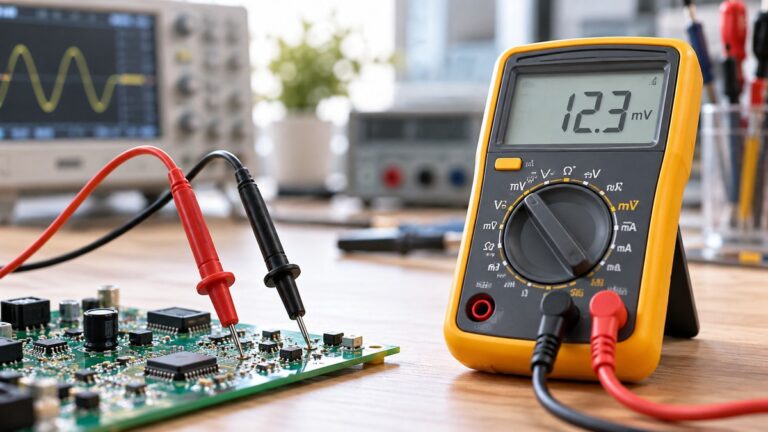
Turn the dial to the DC voltage setting. Chnelson’s power adapter exercise says to “Choose a range higher than the adapter’s specified output.” Its example: “If the output is 9V, the 20V setting is appropriate.” Global Nerdy uses the same logic for a 12 V adapter and sets its meter to a maximum of 20 V.
Many modern meters start in autorange. Fluke says that “Modern DMMs default to Autorange based on the function selected on the dial.” If you want to lock a range, press the RANGE button until the one you want appears. Fluke’s guide describes this in its range step.
Step 2: Connect the probes
Fluke’s DC voltage steps place the black lead in the COM jack and the red lead in the V jack. Do not move the red lead to an amps jack for a voltage test. Fluke warns that “Placing test probes in A or mA inputs and then measuring voltage will create a short in the measurement circuit.” Its fuse article says the same mistake “effectively places a short across the voltage source.”
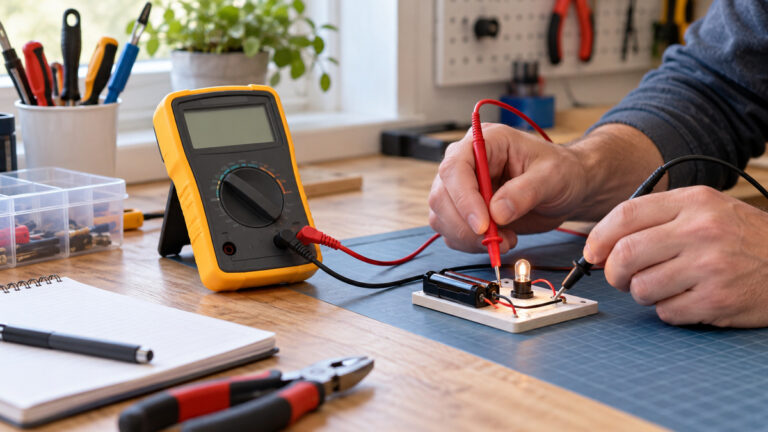
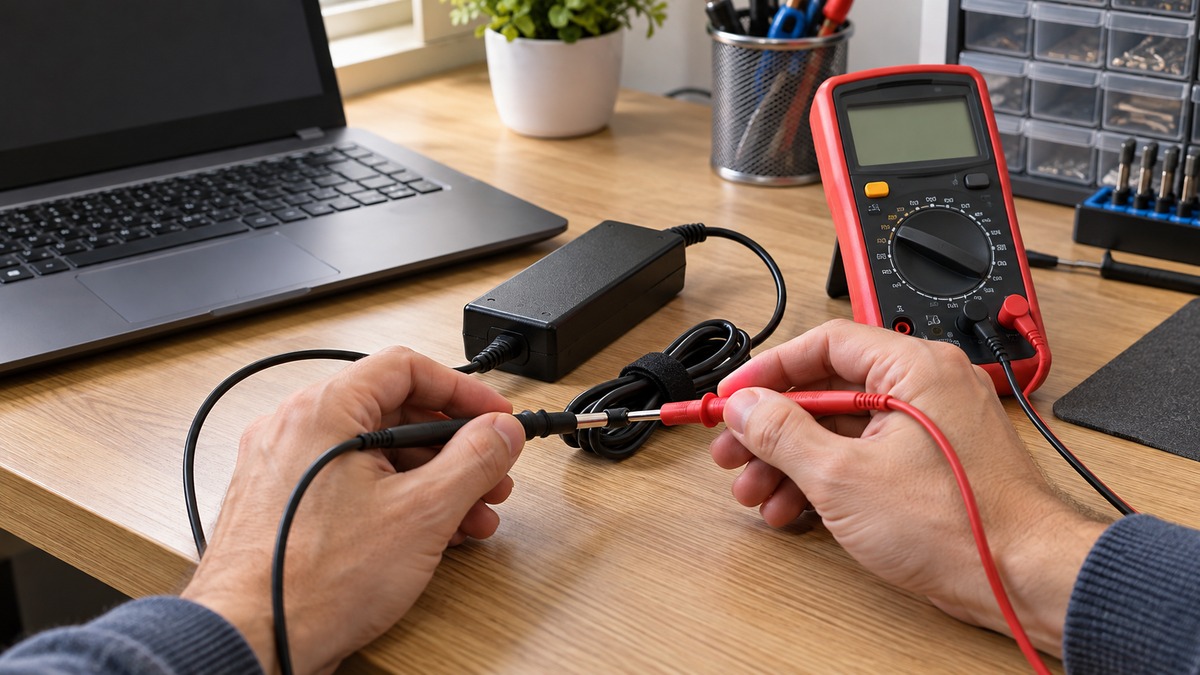
Next, put the probes on the output tip. For a center-positive barrel, Chnelson’s exercise says to insert the red probe into the center hole of the barrel plug and touch the black probe to the outer metal sleeve. Global Nerdy describes the same placement. Keep the leads on the output connector only. Do not put them on the input side of the brick.
If the polarity is reversed, Fluke says that “a negative symbol will appear in the display.” Fluke’s guide also notes that most modern meters detect polarity automatically, so the sign of the reading tells you how the probes are placed. A negative reading on a center-positive charger means the probes are reversed, not that the charger is faulty.
Step 3: Read the voltage and hold it
Read the display once the value settles. Fluke says to “Press the HOLD button to capture a stable measurement,” and that the reading can be viewed after the measurement is complete. Use HOLD if you need to move the probes or check the value again.
Now compare the reading with the Output line. The sources we opened give two different tolerances, and they disagree.
| Source | What it says about the reading |
|---|---|
| Chnelson’s adapter exercise | A reading “slightly higher than the specified rating” is normal, and the example is a 9 V adapter that might read 9.5 V. The exercise asks whether the reading is “within about 10-15% of the specified rating.” |
| GlobTek’s regulation article | The output regulation window is “typically +/-5%,” which is a total window of 10%. Under this spec, 9.5 V on a 9 V output sits just outside the window. |
The two sources do not agree, so this guide does not pick one tolerance for every charger. Read the tolerance from the charger’s own specification if you have it. Chnelson’s exercise also says that a reading of zero, a very low reading, or one “fluctuating wildly” means the adapter is faulty and should be replaced. The sources we opened do not say how far below the label is too far for a laptop charger, beyond that case.
Step 4: Confirm the polarity against the device
The polarity of the output connector must match the device. Ask Leo’s laptop power guide says that “The voltage and polarity of the power supply must match.” Its authors add that polarity is especially important when the power supply comes from a different vendor than the one that made the device, because the connections must match “or you can damage it.”
Global Nerdy says the adapter and the device should both carry a polarity mark, either negative sleeve with positive tip or positive sleeve with negative tip. If you have no meter, the same article says you can “take a leap of faith” and assume a positive tip and a negative sleeve, which is how most adapters are designed. A meter removes the guess. Compare the measured sign with the polarity mark on the label, then with the mark on the laptop’s DC input.
Step 5: Test the output cable with continuity
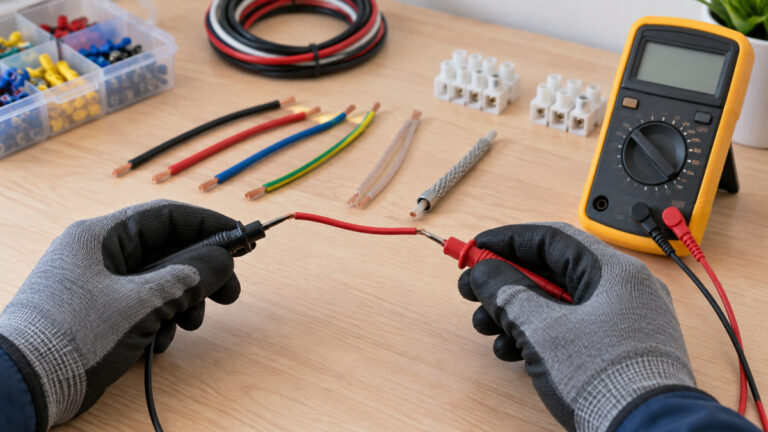
Use continuity mode only on a cable that is de-energized. Fluke’s continuity guide describes the test on a circuit that is “de-energized,” with the test leads connected across the item under test. For a charger cord, that means disconnecting the charger from its supply and from the laptop before you start.
The meter “emits a beep if a complete path (continuity) is detected,” and “If the circuit is open (the switch is in the OFF position), the DMM will not beep.” Fluke also notes that “Some models require you to press a continuity button to activate this specific testing mode.” Check your meter’s manual for that step.
Connect the leads across the two conductors of the output cable, from the tip end to the far end of the cord. A beep means a complete path. No beep means the path is open, and the cable is suspect. Fluke says that a good fuse “should show continuity,” which gives you a familiar reference for what a passing check looks like.
The sources we opened do not describe flexing the cable near the plug while watching the beep. We do not give that method here.
Read the results
Use the checks together. A reading close to the label, with the correct polarity and a continuous cable, passes this check. A reading far from the label, a reversed polarity, or a cable with no continuity fails it.
The sources we opened say more about high readings than about low ones. Global Nerdy’s table says that when the voltage is higher than the device needs, “The additional voltage may overheat and damage your device.” When the voltage is lower, the same table says the device “might work, but it also might work unreliably.” Those statements are from one blog, so treat them as a caution, not as a specification.
Common mistakes
- Leaving the red lead in an amps jack. Fluke says a voltage measurement made this way creates a short in the measurement circuit.
- Skipping the label. A reading means little until you have the Output line to compare it with.
- Using a range below the expected voltage. Chnelson’s exercise says to choose a range higher than the specified output.
- Reversing the polarity. The sources say the polarity must match, and that the wrong polarity can damage the laptop.
- Treating the current rating as a draw. The current on the label is the maximum the charger can supply. Global Nerdy notes that the device “will draw only the current it needs from the adapter.” Match the voltage first.
- Testing continuity on a live cable. Fluke’s method starts with the circuit de-energized.
What we could not verify
The sources we opened do not give a CAT rating for any laptop charger or any meter. They do not give a fuse rating for a meter’s current jacks. They do not give a load test for a charger, so this guide cannot say whether a correct reading with nothing connected means the charger will hold its voltage under a laptop’s load. They do not give a single pass limit that fits every laptop, and they disagree on the tolerance (see the table in Step 3). They do not describe repairing a cable or a charger, and we do not describe repair here.
Frequently asked questions
Does a correct reading prove the charger is good? The sources we opened do not say that. They cover the no-load voltage, the polarity and the cable continuity. They do not cover how the voltage behaves under a laptop’s load, so a passing reading is one check, not a full test.
What if the charger reads 9.5 V on a 9 V output? Chnelson’s exercise calls a reading slightly above the rating normal, and gives 9.5 V as its example. GlobTek’s +/-5% window would put 9.5 V just outside the range. The sources disagree, so check the charger’s own specification.
Which probe goes on the tip? For a center-positive charger, Chnelson’s exercise puts the red probe in the center hole and the black probe on the outer sleeve. If the reading is negative, the probes are reversed.
Can I use the current rating to decide whether a charger is safe? Global Nerdy states that the current rating is the maximum the adapter can deliver, and that a device draws only what it needs. That tells you the charger’s limit, not whether it is safe.
Does the meter need a particular CAT rating for a charger test? The sources we opened do not state a CAT rating for the DC output of a laptop charger. Fluke’s guide says the rating should match the place you measure. Read the CAT rating from the listing or the manual for the meter you use.
Bottom line
Set the meter to DC volts, measure the tip, and compare the reading with the Output line. Confirm the polarity and test the cable for continuity with the charger disconnected. Use the manufacturer’s tolerance for the final call, because the sources we opened do not agree on one.
For more on the meter itself, read our guide to using a voltmeter and the continuity test guide. For a meter with auto-ranging, see our auto-ranging multimeter guide.
Sources
- https://www.fluke.com/en-us/learn/blog/digital-multimeters/how-to-measure-dc-voltage-with-a-digital-multimeter
- https://www.fluke.com/en-us/learn/blog/digital-multimeters/how-to-test-for-continuity
- https://www.fluke.com/en-us/learn/blog/digital-multimeters/choosing-the-correct-fuse-for-your-tester
- https://fluke.com/en-us/learn/blog/safety/multimeter-guide
- https://askleo.com/can_i_use_a_power_supply_with_a_higher_wattage_rating_on_my_laptop
- https://www.globalnerdy.com/?p=32262
- https://www.itechguides.com/?p=703261
- https://www.globtek.com/en/technical-articles/output-cable-regulation-calculator
- https://chnelson.quarto.pub/citc1321/modules/05_Electrical_Power/Exercise_5.1.html